GroupSeveral companies, one plan, books kept separate.
Many carriers are really three or four companies — a second entity for another province, one holding the trailers, one for brokerage — each with its own authority, bank account and accountant.
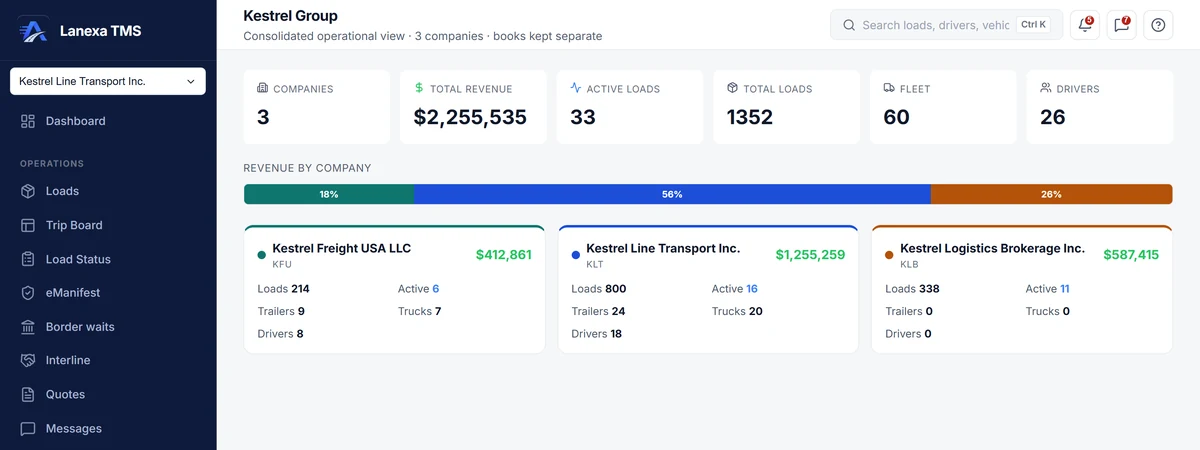
- One combined view, each company's books kept separate
What it does
One plan across every company
Every company in the group takes the group's plan, instead of seven copies that drift apart — and a company added to the group picks up the same plan without a separate subscription.
The whole family at a glance
Combined tiles for companies, booked revenue, active loads, total loads, fleet and drivers; a bar showing each company's share of revenue; and a card per company with its own figures.
Books kept separate, on purpose
The Group screen reports booked freight revenue only — no group profit, margin or receivables — because each company keeps its own accountant and its own year-end. Profit and receivables stay inside each company.
A consolidated trial balance, in the Ledger
When you need the combined books, the Ledger's group lens lists every account across the companies — all companies, intercompany and consolidated — with intercompany business eliminated, and exports it.
No two loads with the same reference
Load references, trip numbers and border references come from one series across the group, so sister companies never hand a customer — or customs — two different loads with the same reference. Invoice numbers stay with each company.
One reporting currency
The group's reporting currency is the one Analytics and Reports use for every company in it, so the family's totals are stated in one currency. Revenue converts at the exchange rate stamped on each load when it was booked.
The detail, when you want it
Everything live in Group10
- The Group item appears only when you belong to a group
- Pick which group to view when you belong to more than one
- Total booked revenue, converted at each load's booked rate
- Active loads and total loads across every company
- Trucks and trailers counted separately
- Drivers counted per company and in total
- Cancelled and truck-ordered-not-used loads left out of revenue
- Deleted and sample records never counted
- Each company's name, short code, revenue, loads, trucks, trailers and drivers on its own card
- A plain message that says which of three things is wrong when there is nothing to show
Which plan includes itGroup is an Enterprise feature: unlimited companies in a group, under one plan.
Solo, Start and Fleet each cover one company. The consolidated trial balance lives in the general ledger, which Enterprise includes. Compare plans
How we count26 live capabilities of 39 catalogued.
Each capability is one control, field, tile, column or disclosed number, counted one by one. The registry
Where do I see the group's combined books?
In the Ledger's group lens: a consolidated trial balance with intercompany business eliminated.
The Group screen itself shows booked freight revenue and operating figures for each company and in total, while each company keeps its own books.
How is a multi-company group billed?
As one Enterprise plan. Each company in the group takes the group's plan rather than carrying its own, so the family stays on one plan instead of several copies that drift apart.
Enterprise is priced by arrangement.
Do sister companies share load numbers?
They share one series, which is the point: load references, trip numbers and border references are drawn from a group-wide sequence, so no two companies in the family issue the same reference.
Invoices keep each company's own numbering, because an invoice must carry its issuing company's sequence.