Trip BoardLive trips above, waiting freight below.
The Trip Board is where a dispatcher sits all day.
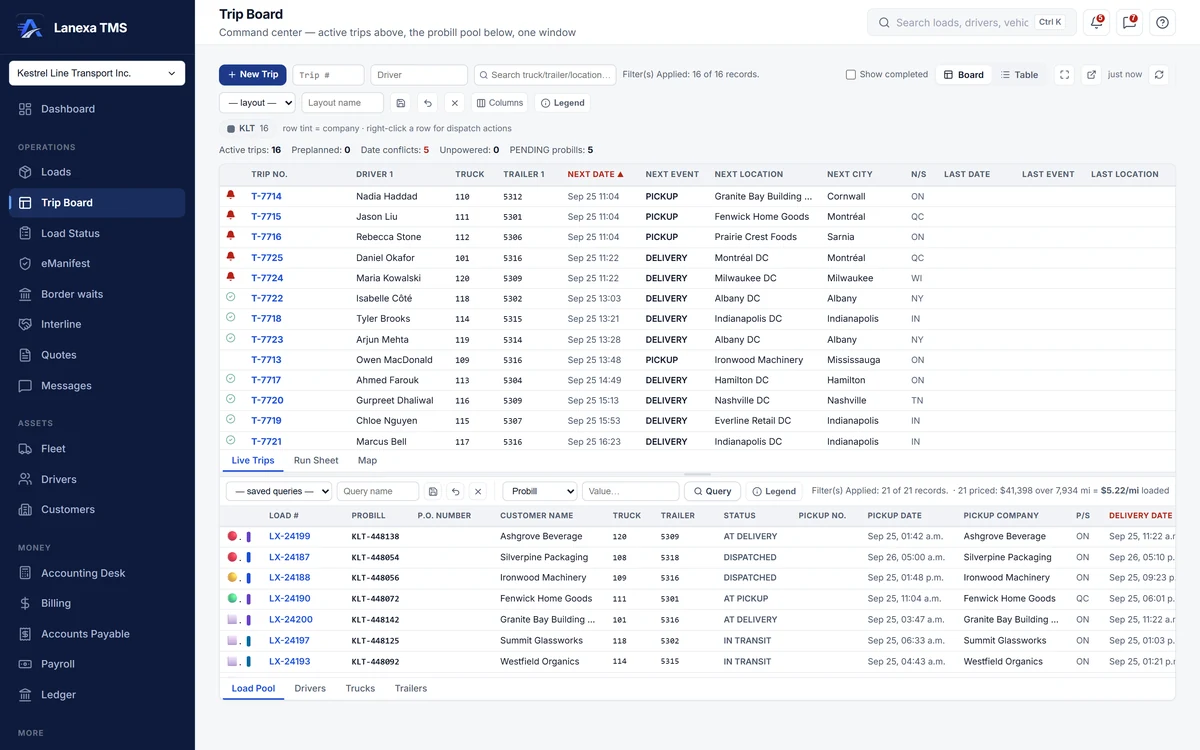
What it does
Build a trip in one dialog
Pick the company, then the truck with its last recorded position, the driver or team with their licence and medical expiry chips, and the trailer. Tick pending loads and their pickup and delivery stops draft themselves; add fuel, yard or rest stops by hand. A timing clash is flagged, never blocking.
Assign from a right-click
Right-click any trip to assign the driver, team driver, truck or trailer. The driver and truck are copied onto every load on that trip, so the load record, the rate confirmation and your customer's tracking page all show who is hauling.
Complete a stop, move the load
Arrive and Complete each stop on the Run Sheet. Completing a stop writes a permanent movement record, moves the truck's and trailer's recorded position, and pushes the load forward — a pickup to in transit, a delivery to delivered, which writes the invoice.
Custody events from the pool
Record any of six custody events — acquire, hook, pickup, drop, deliver, release — straight from a pool load. Hook and drop ask which trailer and whether it is loaded; a hook can hand a parked trailer to a different driver and truck as a relay, which opens a new trip so each driver's work and pay stay on their own run.
Work the pool your way
Query the pool by probill, load number, PO, customer or trailer, save named queries and named layouts, and filter on any cell with a right-click. Flag loads red, yellow or green and flagged rows float to the top. Pivot the pool to drivers, trucks or trailers.
Two monitors, three lenses
Pop the Load Pool into its own window for a second screen; selection and queries mirror between the two. Switch to the Table lens for a spreadsheet grid with frozen columns, drag-to-reorder and inline edits, or the Map lens for every unit on an active trip.
The detail, when you want it
Everything live in Trip Board12
- One warning icon per trip, with every reason in the tooltip
- Day counters: active, pre-planned, conflicts, unpowered, pending probills
- Jump to a trip or a driver; search truck, trailer and locations
- Sort either grid by any column
- Company tint and a customer colour stripe on every row
- Hazmat and interline markers on pool loads
- Where each load came from: manual, AI PDF, copy or quote
- Send the driver their Run Sheet as a message
- A border column with a readiness chip on the Table lens
- Fleet Positions: every asset grouped by yard, company or type
- Keyboard shortcuts on the grid for a new trip, a flag and the next event
- Hide a trip from the board; its loads keep their history
Which plan includes itThe Trip Board, the Load Pool, the Table lens and every assignment step are on Start and up, with nothing held back between Start, Fleet and Enterprise.
On Solo, you run each load from its own record. Compare plans
How we count133 live capabilities of 144 catalogued.
Each capability is one control, field, tile, column or disclosed number, counted one by one. The registry
What is the difference between a load and a trip?
A load is one customer's shipment and the money on it.
A trip is one truck and driver's run — its stops in order. One trip can carry several loads, and a relay can move one load across two trips. The Trip Board puts trips on top and loads underneath so you can match them.
Does completing a stop update the load?
Yes. On the Run Sheet, completing a pickup moves the load to in transit, and completing the delivery marks it delivered, which writes the invoice or records why it could not.
Drops and hooks move the trailer, not the load's status. Every completion also moves the truck's and trailer's recorded position.